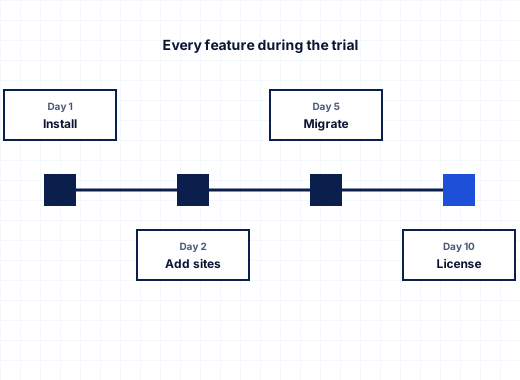
What the free Windows control panel trial includes#
The trial is the same StackRegent release paying customers run. The only difference from a paid plan is the number of hosting accounts (subscriptions) the key allows: three. Inside those accounts, domains, subdomains, mailboxes and databases are not limited, and every tool is switched on.
- 10 days, no charge, no card
- 3 hosting accounts with unlimited domains, mail and databases
- Administrator, reseller and customer panels
- IIS sites with PHP, ASP.NET, ASP.NET Core and Node.js
- MailEnable with Roundcube, Microsoft DNS, MariaDB and SQL Server Express
- Backups, Plesk backup import and live migration from Plesk for Windows
- Signed updates from the license server during the trial
What you need#
- Windows Server 2016, 2019, 2022 or 2025 (build 14393 or later); Server Core works.
- PowerShell opened with Run as administrator.
- Internet access during installation, for the release, the panel database and the components.
- Open ports 80 and 443 for websites and Let's Encrypt, and 9443 for the panel. The installer creates the Windows Firewall rules.
- A spare or test server is ideal: the installer adds the IIS role and the hosting components.
Full details are in the requirements.
How to start your trial#
Step 1: Order the trial key#
Open the 10-day free trial in the store and complete the order. You create a client account at panel.stackregent.com; no card is asked for. The key, in the format SR-XXXXX-XXXXX-XXXXX-XXXXX, arrives in the welcome email and appears on the license's service page in the client area.
Step 2: Run the one-line installer#
Sign in to the server, open PowerShell as administrator and run this line with your own key:
[Net.ServicePointManager]::SecurityProtocol='Tls12'; & ([scriptblock]::Create((New-Object Net.WebClient).DownloadString('https://panel.stackregent.com/get/stackregent.ps1'))) -LicenseKey SR-XXXXX-XXXXX-XXXXX-XXXXXThe script activates the license for this server, downloads the newest stable release from the license server, and checks its size, SHA-256 checksum and signature against the StackRegent release key. Nothing is installed if any check fails. It then sets up IIS, the panel's own database, the Windows services and the recommended components: URL Rewrite, DNS, FTP, Web Deploy, PHP, MailEnable, Roundcube, MariaDB and phpMyAdmin.
Step 3: Save the admin password and open the panel#
At the end the installer prints the panel address, the login admin and its password. Save the password at once; it is not stored anywhere in plain text. Browse to https://SERVER:9443/ and sign in. The browser warns about the panel's first certificate until you give the panel a host name and a Let's Encrypt certificate.
Step 4: Secure the administrator account#
Open My Profile › Profile & Preferences and set up two-factor authentication with an authenticator app. Consider IP Access Restriction Management so only your addresses can reach the admin login. The Advisor rates the server and offers one-click fixes.
Step 5: Create a service plan and your first subscription#
Add a customer, open Service Plans to adjust a hosting plan, and add a subscription with a domain. The panel creates a Windows user, a private webspace, an IIS application pool and the job-object limits from the plan. Add a mailbox, a MariaDB or SQL Server database and a Let's Encrypt certificate, and open the site with Website Preview before any DNS change.
Step 6: Test a migration with real data#
Use one of the three accounts for a subscription from your current server. Connect to a Plesk for Windows server with the migration agent, or upload a Plesk backup, and compare the result with the original. The migration page explains each step.
Things worth testing in ten days#
A trial is most useful when it answers the questions you would otherwise ask after buying:
- Isolation. Create two subscriptions and try to reach one from the other through PHP or FTP. Then run Account Isolation › Check all.
- Limits. Set a low CPU or memory cap on a plan, load a test site and watch the limit-reached counters.
- Resellers. Create a reseller with a small reseller plan and see the panel refuse accounts beyond it.
- Backups. Point the Backup Manager at your S3-compatible bucket or SFTP server, run a backup and restore a subscription.
- Security. Turn on the web application firewall in detection-only mode and read the recent hits after a day.
- Recovery. Stop a service and run Diagnose & Repair.
When the trial ends#
Pick the plan that matches the number of hosting accounts you need on the pricing page. You do not reinstall: apply the paid key under Tools & Settings › License Information or run stackregent license-set on the server, and sites, settings and accounts stay as they are.
If you do nothing, the panel enters restricted mode. Administrators see only the license page and cannot add accounts or install updates, but websites, mail, DNS and customer panels keep running, so a lapsed trial is never an outage for sites you tested with.
Questions during the trial go to support through a ticket or the contact page. The getting started guide covers the first hour on the panel in more depth.
Frequently asked questions
How long is the StackRegent free trial?
Ten days, with three hosting accounts and every feature. Domains, mailboxes and databases inside those accounts are not limited, and no card is needed.
Which Windows Server versions can run the trial?
Windows Server 2016, 2019, 2022 and 2025, including Server Core installations, where the IIS Manager and the tray app are skipped.
Do I need to reinstall after buying a plan?
No. Enter the paid key on the License Information page or run stackregent license-set. Sites, accounts and settings stay where they are.
What happens to my sites when the trial expires?
The panel enters restricted mode: administrators see only the license page, but websites, mail, DNS and customer panels keep working until you apply a paid key.
Can I test Plesk migration during the trial?
Yes. The Migration & Transfer Manager is part of the trial. Connect to Plesk for Windows with the migration agent or upload a Plesk backup, and move up to three subscriptions.
Can I run the trial on more than one server?
Each key is bound to one server's Windows machine ID. To evaluate a second server, it needs its own key; contact sales if you are planning a larger evaluation.